
AppArmor
AppArmor is a Linux security module that helps protect the system by restricting what applications can do.
It works by using security profiles that define which files, directories, capabilities, and system resources an application is allowed to access. This helps reduce the impact of compromised or vulnerable applications by limiting their behavior.
AppArmor can be especially useful for desktop systems, servers, and security-focused environments because it provides an additional layer of protection without requiring major changes to how applications are used.
How AppArmor Works
Section titled “How AppArmor Works”AppArmor uses profiles to define application permissions.
A profile can be loaded in different modes:
| Mode | Description |
|---|---|
enforce |
The profile is active and AppArmor blocks actions that are not allowed by the policy |
complain |
The profile does not block actions, but logs what would have been denied |
unconfined |
The application is not restricted by an AppArmor profile |
The most common workflow is:
- Run a profile in
complainmode. - Review the generated logs.
- Adjust the profile if needed.
- Switch the profile to
enforcemode.
This makes it easier to test profiles before actively blocking application behavior.
Check if AppArmor Is Enabled
Section titled “Check if AppArmor Is Enabled”AppArmor and its profiles should already be enabled and running on Parrot OS.
To check whether AppArmor is enabled, run:
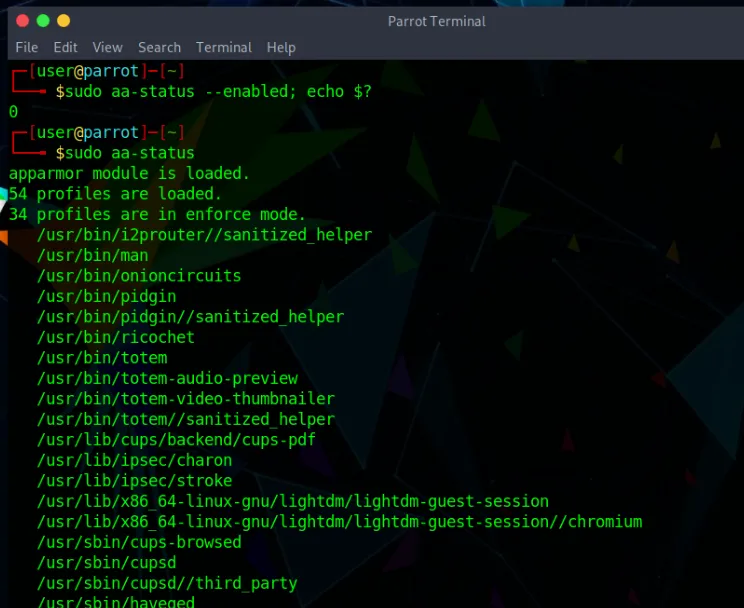
sudo aa-status --enabledecho $?If AppArmor is enabled, the command should return:
0You can also inspect the current AppArmor status with:
sudo aa-statusThis command shows loaded profiles and their current status, such as enforce, complain, or unconfined.
Another simple way to check whether AppArmor is enabled is:
cat /sys/module/apparmor/parameters/enabledIf AppArmor is enabled, the output should be:
YInstall AppArmor
Section titled “Install AppArmor”If AppArmor is not installed, you can install it with:
sudo apt update && sudo apt install apparmor apparmor-utils auditdPackage description:
| Package | Description |
|---|---|
apparmor |
Main AppArmor package |
apparmor-utils |
Utilities for managing AppArmor profiles |
auditd |
Audit daemon used for logging and profile analysis |
Enable AppArmor
Section titled “Enable AppArmor”To enable AppArmor through the kernel boot parameters, create the GRUB configuration directory if it does not already exist:
sudo mkdir -p /etc/default/grub.dCreate an AppArmor GRUB configuration file:
echo 'GRUB_CMDLINE_LINUX_DEFAULT="$GRUB_CMDLINE_LINUX_DEFAULT apparmor=1 security=apparmor"' | sudo tee /etc/default/grub.d/apparmor.cfgUpdate GRUB:
sudo update-grubReboot the system:
sudo rebootAfter rebooting, check the current AppArmor status:
sudo aa-statusInstall Additional AppArmor Profiles
Section titled “Install Additional AppArmor Profiles”Additional profiles can be installed with:
sudo apt install apparmor-profiles apparmor-profiles-extraAppArmor profiles are usually stored in:
/etc/apparmor.d/Profiles provided by packages are normally loaded automatically when the package installs a policy file in /etc/apparmor.d/.
You can also manually load or reload profiles with apparmor_parser.
Example:
sudo apparmor_parser -r /etc/apparmor.d/profile-nameReplace profile-name with the profile you want to reload.
Manage AppArmor Profiles
Section titled “Manage AppArmor Profiles”Set a Profile to Complain Mode
Section titled “Set a Profile to Complain Mode”Complain mode allows the application to run normally while AppArmor logs actions that would have been denied in enforce mode.
Example:
sudo aa-complain /etc/apparmor.d/profile-nameSet a Profile to Enforce Mode
Section titled “Set a Profile to Enforce Mode”Enforce mode actively blocks actions that are not allowed by the profile.
Example:
sudo aa-enforce /etc/apparmor.d/profile-nameDisable a Profile
Section titled “Disable a Profile”To disable an individual profile, use:
sudo aa-disable /etc/apparmor.d/profile-nameExample:
sudo aa-disable /etc/apparmor.d/usr.bin.pidginTo enable it again in enforce mode:
sudo aa-enforce /etc/apparmor.d/usr.bin.pidginUse Extra Profiles
Section titled “Use Extra Profiles”Some extra AppArmor profiles may be available under:
/usr/share/doc/apparmor-profiles/extrasTo copy them into the AppArmor profile directory:
cd /usr/share/doc/apparmor-profiles/extrassudo cp -i * /etc/apparmor.d/To place all copied extra profiles into complain mode:
for profile in /etc/apparmor.d/*; do sudo aa-complain "$profile"doneTo place profiles into enforce mode, use aa-enforce instead:
sudo aa-enforce /etc/apparmor.d/profile-nameSome extra profiles may need adjustments before they work correctly in enforce mode. If an application starts behaving unexpectedly, switch the profile to complain mode, review the logs, and update the profile as needed.
Check Confined Processes
Section titled “Check Confined Processes”To list processes currently confined by AppArmor, run:
ps auxZ | grep -v '^unconfined'You can also use:
sudo aa-statusThe aa-status command provides a summary of:
- loaded profiles
- profiles in enforce mode
- profiles in complain mode
- confined processes
- unconfined processes with profiles available
Find Unconfined Network Services
Section titled “Find Unconfined Network Services”To list processes using TCP or UDP ports that do not have AppArmor profiles loaded, run:
sudo aa-unconfinedFor a more detailed check, use:
sudo aa-unconfined --paranoidThis can be useful when identifying services that may benefit from additional AppArmor confinement.
Debug AppArmor
Section titled “Debug AppArmor”AppArmor logs can help identify whether a problem is related to profile restrictions.
Monitor Denied Events
Section titled “Monitor Denied Events”To watch denied events in the system log, use:
sudo tail -f /var/log/syslog | grep DENIEDIf auditd is installed, denied events may also appear in the audit log:
sudo tail -f /var/log/audit/audit.log | grep DENIEDDenied log entries usually show:
- the affected profile
- the process name
- the requested operation
- the denied path or resource
- the access type that was blocked
Profiles in complain mode may generate ALLOWED entries for actions that would normally be denied in enforce mode. These logs can be used to adjust profiles before enabling enforcement.
Use aa-notify
Section titled “Use aa-notify”The aa-notify command can display desktop notifications when AppArmor denies an action.
Install the notification tool if it is not already installed:
sudo apt install apparmor-notifyTo allow your user to read system logs, add it to the adm group:
sudo adduser "$USER" admLog out and log back in for the group change to take effect.
Then start aa-notify with:
aa-notify -pIf you are using auditd, start it with:
sudo aa-notify -p -f /var/log/audit/audit.logOn desktop systems, aa-notify may also start automatically on login through:
/etc/xdg/autostart/apparmor-notify.desktopDiagnose Application Issues
Section titled “Diagnose Application Issues”If an application is not working as expected, AppArmor may be restricting one of its actions.
A useful troubleshooting workflow is:
- Check whether AppArmor is enabled:
cat /sys/module/apparmor/parameters/enabled- Check loaded profiles:
sudo aa-status- Check whether the application is confined:
ps auxZ | grep application-name- Review denied events:
sudo tail -f /var/log/syslog | grep DENIEDOr, if using auditd:
sudo tail -f /var/log/audit/audit.log | grep DENIED- Temporarily switch the profile to complain mode:
sudo aa-complain /etc/apparmor.d/profile-name-
Test the application again.
-
If the issue disappears, review the logs and adjust the profile before returning it to enforce mode:
sudo aa-enforce /etc/apparmor.d/profile-nameDisable AppArmor
Section titled “Disable AppArmor”You can disable individual profiles with:
sudo aa-disable /etc/apparmor.d/profile-nameIf you want to disable AppArmor entirely, create or update the AppArmor GRUB configuration file:
sudo mkdir -p /etc/default/grub.decho 'GRUB_CMDLINE_LINUX_DEFAULT="$GRUB_CMDLINE_LINUX_DEFAULT apparmor=0"' | sudo tee /etc/default/grub.d/apparmor.cfgUpdate GRUB:
sudo update-grubReboot the system:
sudo rebootAfter rebooting, verify the status:
cat /sys/module/apparmor/parameters/enabledIf AppArmor is disabled, the output should be:
NDisabling AppArmor entirely reduces the system security posture. Prefer disabling or adjusting individual profiles whenever possible.
Practical Recommendations
Section titled “Practical Recommendations”When working with AppArmor, follow these recommendations:
| Recommendation | Reason |
|---|---|
Use complain mode before enforce mode |
Helps test profiles without breaking applications |
| Review logs before enforcing profiles | Makes it easier to identify missing permissions |
| Avoid disabling AppArmor globally | Keeps the system protected |
| Disable only specific profiles when troubleshooting | Reduces security impact |
| Keep profiles updated | Improves compatibility and security |
Use aa-status regularly |
Helps monitor loaded and active profiles |
Summary
Section titled “Summary”AppArmor provides an additional security layer by restricting what applications can access on the system.
The most useful commands are:
| Command | Purpose |
|---|---|
sudo aa-status |
Shows AppArmor status and loaded profiles |
sudo aa-complain profile |
Sets a profile to complain mode |
sudo aa-enforce profile |
Sets a profile to enforce mode |
sudo aa-disable profile |
Disables a profile |
sudo aa-unconfined |
Lists processes that may be running without confinement |
aa-notify -p |
Shows AppArmor notifications |
sudo tail -f /var/log/syslog | grep DENIED |
Monitors denied events in logs |
sudo tail -f /var/log/audit/audit.log | grep DENIED |
Monitors denied events through auditd |
Using AppArmor correctly helps improve system security while still allowing applications to work as expected.